Facebook to MP3 Converter
Extract audio from any Facebook video and save it as an MP3 file — free, fast and no app. Just paste the video link to convert Facebook video to MP3.
How to Extract Audio From a Facebook Video as MP3
FB DownS is a free Facebook to MP3 converter that pulls the audio out of any public Facebook video and saves it as a clean MP3 file. To extract audio from a Facebook video, copy the video link from the Share menu, paste it into the box at the top of this page, choose the MP3 / audio option, and click Download. There is nothing to install — it runs in any browser on Android, iPhone, iPad, Mac, Windows and Chromebook, with no app, no extension and no Facebook login required.
What options exist for audio-only extraction?
Every public Facebook video, Reel or Watch clip you can view offers the same choice: keep the full MP4, or keep the sound alone as an MP3. People pick audio-only to save music and cover songs, keep podcasts and interviews for offline listening, grab a lecture or sermon, or capture a short voice note. Because none of the picture data comes along, the MP3 is a fraction of the size — easy to store on a phone and quick to download on a weak connection.
Works on every device, no app needed
The whole process happens in the browser, so the steps are identical on a phone, tablet or computer: copy the Facebook link, paste it here, pick MP3 and save. If you want the picture too, run the same link through our Facebook video downloader and choose an MP4 quality instead. The transfer runs directly from Facebook's servers to your browser, so nothing is stored on our side — FB DownS keeps no download history and never asks for your account details.
Convert a Facebook Video to MP3 in 3 Steps

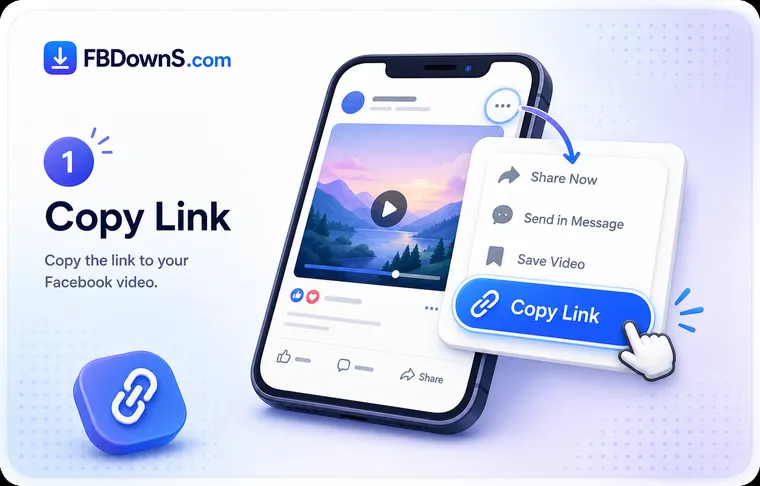
Step 1: Copy the Video Link
Open the Facebook video, Reel or Watch clip, tap the Share button or the three-dot menu, and select "Copy link". This copies the direct URL that FB DownS needs to fetch the audio.

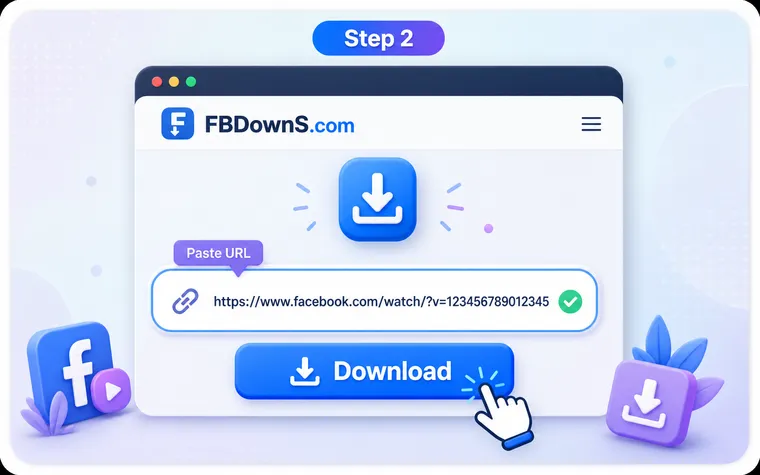
Step 2: Paste & Choose MP3
Paste the copied link into the input box above and click Download. FB DownS analyses the video and lists the available formats — select the MP3 / audio option to grab just the sound.

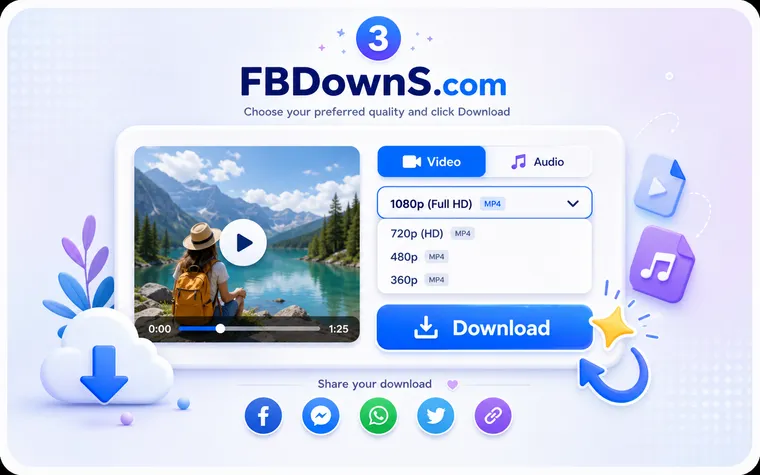
Step 3: Save the MP3 to Your Device
Click Download again to save the audio. On mobile the MP3 lands in your Downloads folder or Files app; on a computer it saves to your browser's Downloads folder, ready to play offline.
Add FB DownS to Home Screen
Add FB DownS to your home screen for quick access anytime, allowing you to download Facebook videos instantly without installing an app or using device storage.
Why Choose FB DownS to Convert Facebook to MP3?
Clean MP3 Audio Extraction
FB DownS separates the audio track from the video and delivers it as a standard MP3 that plays in any music app, car stereo or podcast player — no video file wrapped around it.
100% Free & Unlimited
Convert as many Facebook videos to MP3 as you like. There are no hidden fees, no sign-up and no daily download limit — the audio converter is completely free to use.
Fast Original-Quality Sound
The audio is pulled straight from the Facebook source, so you keep the original bitrate the uploader used. No harsh second-round compression, no muddy re-encoded sound.
No Sign-Up, No Login
You never create an account or share your Facebook login. Just paste a video link and the MP3 is yours — nothing to register and nothing to remember.
Browser-Based MP3 Converter
The whole conversion happens on the web page — no music app, no converter software and no plugin to install. Paste a Facebook link and the MP3 is ready to save straight from your browser.
Private by Design
FB DownS never asks you to log in and keeps no download history. Links are processed on demand and the audio you extract is not stored on our servers.
What People Extract Facebook Audio For
Music & Cover Songs
Save a favourite track or acoustic cover posted to Facebook as an MP3 so you can add it to your offline playlist and listen without keeping the screen on. For personal listening only — don't redistribute copyrighted music.
Podcasts
Turn a long-form podcast episode shared on Facebook into audio you can play in the background while commuting, cooking or working out, without draining data on the video.
Interviews
Extract the sound from an interview or panel discussion when you only need the conversation. The MP3 is easy to replay, quote or reference later without scrubbing through video.
Voice Notes
Capture a spoken message, announcement or short voice clip from a public post as a small audio file that's simple to save and revisit whenever you need it.
Lectures & Talks
Convert a public lecture, sermon or conference talk into audio for offline study. Listening on repeat is an easy way to review the material away from a screen.
Sound Clips
Grab a short sound effect, jingle or memorable audio moment as an MP3. Handy for personal reference — always get permission before reusing someone else's audio in your own work.
Facebook MP3 Audio Quality Explained
FB DownS extracts the existing audio track from the Facebook video rather than re-recording it, so the MP3 you receive is as faithful to the source as possible.
What sets the bitrate
The bitrate of your MP3 is determined by the sound Facebook stored with the original upload — typically around 128kbps for standard videos. A converter can't add clarity that was never in the source, so the cleanest MP3s come from videos that were uploaded with good audio in the first place.
Because an audio-only file drops all the video data, the MP3 is a fraction of the size of the full clip. That makes it quick to download on mobile data and easy to keep a large offline library without filling up your storage — while you keep everything for personal use and respect the original creator's rights.
A Closer Look at Facebook Audio Extraction
Turning a Facebook clip into an MP3 is really about separating one layer from another. Every video is a container holding a picture track and a sound track side by side, and a Facebook to MP3 tool lifts out the audio and re-packages it as a standalone file. Nothing is re-performed or synthesised — the waveform you end up with is the same one that was riding inside the clip, which is why the result sounds natural in any music app.
Downloading a Facebook video with the option to save audio only
You choose between video and audio at the same moment, not on different pages. Paste a Facebook link and FB DownS lists what is available: an HD MP4, a smaller SD MP4, and an MP3. Picking MP3 saves only the sound; picking a video quality saves the full clip. If you want both, run the same link twice and choose a different format each time — it is one link, one browser tab, and no software in between.
Can I save the original audio from a Facebook Reel?
Yes. Reels work exactly like ordinary videos here: copy the reel link from its Share menu, paste it in, and choose the MP3 option to keep the trending sound, music bed or voiceover on its own. The audio comes from the same source file Facebook publishes, so it is the track as the creator posted it rather than a re-recording. Keep it for personal listening — reusing someone's audio in your own content needs their permission.
Keeping commentary, voiceovers and spoken audio
Videos with narration, reaction commentary or a presenter talking over footage convert particularly well, because speech is what survives compression best. The MP3 keeps whatever was mixed into the video's single audio track — commentary, music and background all together, exactly as it was published. No specialist software is needed: separating a voice from the music underneath it would require re-processing the sound, which this tool deliberately does not do.
Saving Facebook Stories that contain music
Stories are trickier than posts for one reason: they expire, and only the ones you are allowed to view can be reached at all. Where a Story has a shareable link, the same paste-and-choose flow applies and our Story downloader handles the video while the MP3 option keeps the music. Stories restricted to an audience you are not part of cannot be saved by any legitimate tool, and a licensed track inside someone's Story still belongs to its rights holder.
When audio-only just makes more sense
Sometimes the picture is beside the point — a two-hour livestreamed conversation, a recorded lecture, a sermon, a language lesson, a guided meditation. Choosing audio instead of the full clip trims the file dramatically, often to a tenth of the size, because none of the pixel data comes along. That smaller footprint is what lets you build a real offline library: dozens of talks in the space a couple of videos would eat up.
Saving your MP3 on phone and desktop
On iPhone the finished file drops into the Files app under Downloads, ready to move into a podcast or music player. On Android it lands in Downloads and surfaces in most audio apps automatically. On Mac or Windows it arrives in your browser's download folder, where you can drag it into a playlist. No cable, companion app or account is involved, and the transfer runs directly from Facebook to your browser rather than through our servers.
Using extracted audio responsibly
Treat this as a convenience for your own listening, not a shortcut around anyone's rights. Saving a clip you made, a talk you were invited to record, or a public interview for private replay is the everyday use it is built for. Re-uploading someone else's song, folding their audio into your own content or selling it needs the creator's permission. And it only ever handles material you are already allowed to view — when in doubt, ask.
Facebook to MP3 Converter — FAQ
How do I get an MP3 from a Facebook video?▾
Open the Facebook video, tap the Share button or three-dot menu and choose "Copy link". Paste that link into the box at the top of this page, click Download, and select the MP3 / audio option. The audio saves to your device in a few seconds — no app or login needed.
What audio quality or bitrate will the MP3 have?▾
FB DownS extracts the audio from the original Facebook source, so the MP3 keeps the bitrate the uploader used — commonly around 128kbps for typical uploads. We don't re-compress the sound a second time, so the audio stays as close to the source as possible. A video recorded with low-quality sound will still produce a low-quality MP3, since we can't add detail that wasn't in the original.
How do I extract audio from a Facebook video on iPhone?▾
Copy the video link in the Facebook app, open fbdowns.com in Safari, paste the link, tap Download and choose the MP3 option. The file saves into the Files app under Downloads, and you can move it into your preferred music or podcast app from there. No app or jailbreak is required.
How do I convert a Facebook video to MP3 on Android?▾
Copy the link from the Facebook app, open fbdowns.com in Chrome, paste it, tap Download and pick the audio option. The MP3 saves to your Downloads folder automatically and appears in most music player apps.
Can I extract Facebook audio on a Mac or Windows PC?▾
Yes. The process is identical on desktop: copy the Facebook video URL, paste it here, choose the MP3 option and the audio saves to your browser's Downloads folder. It works in Chrome, Safari, Edge and Firefox.
Is the Facebook to MP3 converter free?▾
Yes, extracting audio is free with no account and no paywall. Convert as many public Facebook videos into MP3 files as you like — there is no cap on how many tracks you can save.
Do I need to install an app to convert Facebook to MP3?▾
No. FB DownS runs entirely in your web browser. There is nothing to download or install — just paste a link and choose the audio option.
Where do the downloaded MP3 files save on my device?▾
On Android, files usually appear in the Downloads folder inside the Files app. On iPhone and iPad, the MP3 lands in the Files app under Downloads. On a computer, check your browser's Downloads folder. From there you can move the file into any music or podcast app.
Can I get just the song from a Facebook video?▾
Yes — that's exactly what the MP3 option does. It saves only the audio track, so you get the sound or music without the video wrapped around it. Please keep this for personal listening and respect the rights of copyright holders.
Can I extract audio from a Facebook podcast or interview?▾
Yes. As long as the video is a public post with a valid shareable link, you can paste it here and save the spoken audio as an MP3 for offline listening — ideal for long podcasts, interviews and talks.
Is it legal to convert Facebook videos to MP3?▾
Extracting audio for personal, offline use — especially your own content or clips you have permission to save — is generally fine. Always respect copyright: don't re-publish, share or monetise someone else's music or audio without their permission.
Can I extract audio from a private Facebook video?▾
FB DownS only works with content you are authorised to view. It cannot access videos restricted to people you're not permitted to see. Only extract audio from videos you own or are clearly allowed to save.
Why is my Facebook audio download not working?▾
Usually it's the link: make sure you copied it from the video itself using "Copy link", not from a profile or a search result. Audio also can't be pulled from a video that is private, removed or blocked in your region. Copy a fresh link from a public video and try the MP3 option again.
Does the download also keep the video, or only the audio?▾
When you choose the MP3 option, FB DownS saves only the audio track — no video file. If you want the picture as well, use the Facebook video downloader and pick an MP4 quality instead of the audio option.
Does FB DownS store the audio I extract?▾
No. Links are processed on demand and the file transfers directly from Facebook's servers to your browser, so the MP3 never sits on ours. No download history is kept and your activity stays private.
How can I download Facebook videos online with options to save audio only?▾
Paste the video link once and choose at the results step. FB DownS lists an HD MP4, an SD MP4 and an MP3 for the same video — pick MP3 to save the sound only, or a video quality to keep the whole clip. If you want both, run the link twice and pick a different format each time.
Which platforms let me download Facebook videos and convert them to audio files?▾
Any browser-based tool that reads a public Facebook link can do it, and FB DownS does it without an app, extension or account. It runs in Chrome, Safari, Edge and Firefox on Android, iPhone, iPad, Windows, Mac and Chromebook. Be cautious of services that demand installed software or your Facebook password — neither is needed to extract audio.
What are the options for downloading Facebook Reels while saving the original audio?▾
Reels work exactly like ordinary videos here. Copy the reel link from its Share menu and paste it in: choose an MP4 to keep the video with its sound intact, or choose MP3 to keep the trending audio, music bed or voiceover on its own. The audio comes from Facebook's own source file, so it is the track as the creator published it.
How can I save Facebook stories that contain music?▾
You can save a Story only while it is still live and only if you are allowed to view it. Where the Story has a shareable link, paste it into our Story downloader for the video, or use the MP3 option here to keep just the music. Stories restricted to an audience you are not part of cannot be saved, and a licensed track still belongs to its rights holder.
How do I download Facebook videos with embedded audio commentary?▾
Commentary comes through automatically because it is mixed into the video's single audio track. Choose the MP3 option and you get the narration, music and background exactly as published — narration converts especially well, since speech survives compression better than music. No specialist software is involved, and we do not re-process the sound.
Can I separate the voice from the background music in the MP3?▾
No. FB DownS extracts the audio track as it exists in the Facebook video, and voice and music are already mixed together in that single track. Splitting them apart would require re-processing the sound with separate software, which is outside what this converter does.
Can I convert several Facebook videos to MP3 at once?▾
No. FB DownS handles one link at a time in your browser — there is no batch mode, queue, scheduler, cloud storage or API. To build a library, paste each video individually and organise the MP3 files into folders on your own device.
Can I choose the bitrate, or save as WAV or M4A instead?▾
No. FB DownS delivers the audio in the form Facebook already stores it, which means an MP3 at the source bitrate — commonly around 128kbps. There are no bitrate settings and no alternative formats, because offering them would mean re-encoding the sound and losing a little quality in the process.
Can I trim the MP3 or keep only part of the video's audio?▾
No. The download gives you the complete audio track for the video, from start to finish. If you only need a section, save the full MP3 and cut it in any audio editor on your own device — and if the clip is someone else's work, get their permission before reusing it.
More Facebook download tools
Facebook Video Downloader
Save any public FB video in HD MP4.
Facebook Reels Downloader
Download Reels with sound, no watermark.
Facebook Story Downloader
Save Story videos & photos before they expire.
Private Video Downloader
Save private videos you're allowed to view.
Facebook Photo Downloader
Download photos in full resolution.
Popular guides
Related searches
FB DownS answers all of these common ways people ask to pull audio from Facebook:
- facebook to mp3
- facebook video to mp3
- extract audio from facebook video
- facebook mp3 downloader
- convert facebook video to mp3
- facebook audio download
- fb to mp3
- download audio from facebook
- facebook audio extractor
- facebook video to audio
- save facebook audio
- facebook reel to mp3